Frequently asked questions about MilkSync for Microsoft Outlook are answered below. If you still have questions after reading the FAQ, please contact us.
Installation
Which versions of Microsoft Outlook and Microsoft Windows are supported?MilkSync is compatible with 32-bit and 64-bit editions of Microsoft Outlook 2003, 2007, 2010, 2013, and 2016 on Windows XP (SP2 and higher), Windows Vista, Windows 7, Windows 8, and Windows 10.
MilkSync does not currently support Click-to-Run installations of Outlook. For more information and instructions on switching from a Click-to-Run installation to an MSI-based installation, please see this page.
Yes, 64-bit editions of Microsoft Outlook are supported as of version 1.0.11 of MilkSync.
No. MilkSync has been specifically designed to be installable on the majority of limited user accounts.
Yes, MilkSync can be used alongside Microsoft Exchange Server. Please note that MilkSync can only synchronize tasks from a single instance of Microsoft Outlook, and does not sync directly with Microsoft Exchange Server. Therefore, installing MilkSync on multiple computers connected to the same Exchange server may result in duplicated tasks or deleted data.
When using Exchange, it's best to install MilkSync on only one computer. Microsoft Exchange Server will ensure that any changes you make are reflected in all instances of Outlook.
Please follow these instructions provided by Microsoft, and back up your data before using MilkSync for Microsoft Outlook.
Unfortunately it's not recommended to use MilkSync when using third-party sync applications that sync between Microsoft Outlook and Remember The Milk. Please be aware that doing so may result in duplicated tasks or deleted data.
IMPORTANT NOTE: If you've used a third-party sync application previously, you must perform a restore immediately after installing MilkSync, or your Remember The Milk tasks will be duplicated. The 'Restore' option will delete all tasks in Microsoft Outlook and replace them with a fresh copy of the tasks in your Remember The Milk account. To use this option:
- Right-click the Remember The Milk icon in your Windows System Tray.
- Select Tools then Restore.
Unfortunately it's not recommended to use MilkSync when using third-party sync applications that sync between Microsoft Outlook and Remember The Milk, and we strongly advise that you fully uninstall any such apps before installing MilkSync. Otherwise, the result may be duplicated tasks or deleted data.
IMPORTANT NOTE: If you've used a third-party sync application previously, you must perform a restore immediately after installing MilkSync, or your Remember The Milk tasks will be duplicated. The 'Restore' option will delete all tasks in Microsoft Outlook and replace them with a fresh copy of the tasks in your Remember The Milk account. To use this option:
- Right-click the Remember The Milk icon in your Windows System Tray.
- Select Tools then Restore.
To set up MilkSync for Microsoft Outlook:
- Check that your version of Microsoft Outlook and Microsoft Windows are compatible with MilkSync (see FAQ above).
- Perform a back up of your data in Microsoft Outlook (see instructions).
- Download the app by clicking on the "Get MilkSync now" button on the Overview page.
- The downloaded file should open automatically (if it doesn't, open it manually from your browser's download window).
- Follow the prompts through the installation process.
Once MilkSync is installed on your computer, the settings window will appear:
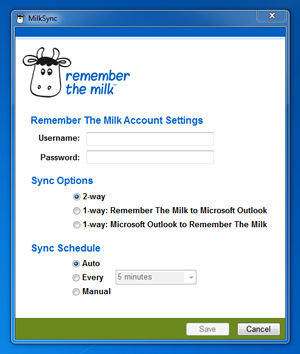
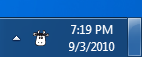
Enter your Remember The Milk login details, and choose your syncing preferences. After MilkSync is set up, you can access the settings window again by right-clicking the Remember The Milk icon in your Windows System Tray:
To uninstall MilkSync from your computer, follow these steps:
- Open the Start menu.
- Select Control Panel.
- Open Add or Remove Programs.
- Locate MilkSync for Microsoft Outlook and click Remove.
- Click Uninstall to confirm that you'd like to remove MilkSync.
Please keep in mind that it's not possible to reverse your tasks to their previous state prior to syncing with MilkSync.
Once the app is uninstalled, simply follow the installation instructions if you wish to reinstall.
Pro Accounts & Pricing
How much does it cost?The app is a free download for those with a Remember The Milk Pro account. Pro accounts are only $49.99 per year, and give you access to MilkSync for Microsoft Outlook and more awesome stuff. You can learn more about Pro accounts and upgrade on this site.
Yes! You can try MilkSync free for 15 days without a Pro account (your trial begins the first time you synchronize with MilkSync). After the trial, you can upgrade to Pro to continue using MilkSync.
Note: You should take advantage of the trial to make sure that MilkSync works with your particular Microsoft Outlook set-up, as Pro accounts are non-refundable.
Your 15 day free trial begins the first time you synchronize with MilkSync. To get started, just download and install the app.
If you haven't had enough time to try out MilkSync, please get in touch.
No, sorry. MilkSync for Microsoft Outlook provides a syncing service; we run the servers that allow you to sync the app on an ongoing basis. If you don't have a Pro account yet, a free 15 day trial of MilkSync is available to help you determine if the app is right for you.
Basics
What is MilkSync?MilkSync is an app that synchronizes Remember The Milk with Microsoft Outlook. Key features include:
- Two way synchronization (or optionally Remember The Milk to Microsoft Outlook, or vice versa).
- Scheduled synchronization (e.g., automatically sync every 15 minutes).
- Include all lists or specific lists from Remember The Milk when syncing.
- Easy access to sync via a Windows System Tray icon.
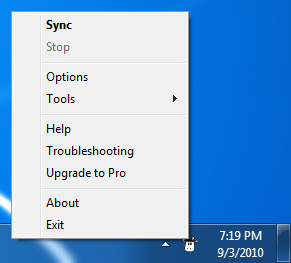
Once installed, to access MilkSync's menu, just right-click the Remember The Milk icon in your Windows System Tray:
MilkSync will periodically check for new versions, and auto-update when new versions are available. This makes sure that the app is as up-to-date as possible.
If you'd like to check manually whether any updates are available, just:
- Right-click the Remember The Milk icon in your Windows System Tray.
- Select About and check the status at the bottom of the dialog.
MilkSync is available in Simplified Chinese, Traditional Chinese, Dutch, US English, French, German, Japanese, Korean, Polish, Portuguese (Brazil), Swedish, and Ukrainian. If you'd like to help us make MilkSync available in your language, please check out our translation program.
Synchronization
How often does MilkSync sync with Remember The Milk?When you install MilkSync, you'll be prompted to choose how often MilkSync should sync with Remember The Milk. The options are:
- Auto (sync around every 5 minutes, as well as automatically sync with Remember The Milk a few seconds after you've made a change in Microsoft Outlook)
- Every 5 minutes, 10 minutes, 15 minutes, 30 minutes, 1 hour, 2 hours, 4 hours, or 1 day
- Manual
You can change your preference for the sync schedule at any time:
- Right-click the Remember The Milk icon in your Windows System Tray.
- Select Options.
- Modify your preference under 'Sync Schedule'.
- Click Save.
To perform a manual sync at any time:
- Right-click the Remember The Milk icon in your Windows System Tray.
- Select Sync.
When you install MilkSync, you'll be prompted to choose the sync direction. The options are:
- 2-way (any changes to tasks made in either Remember The Milk or Microsoft Outlook will be reflected in both applications)
- 1-way: Remember The Milk to Microsoft Outlook (tasks from Remember The Milk are added to Microsoft Outlook, and any future changes made in Remember The Milk will be reflected in Microsoft Outlook as well; however, changes made in Microsoft Outlook will not be reflected in Remember The Milk)
- 1-way: Microsoft Outlook to Remember The Milk (tasks from Microsoft Outlook are added to Remember The Milk, and any future changes made in Microsoft Outlook will be reflected in Remember The Milk as well; however, changes made in Remember The Milk will not be reflect in Microsoft Outlook)
You can change your preference for the sync direction at any time:
- Right-click the Remember The Milk icon in your Windows System Tray.
- Select Options.
- Modify your preference under 'Sync Options'.
- Click Save.
MilkSync synchronizes all tasks in your Tasks folder, in your main email account in your Outlook profile. It may be clearer to list the items that MilkSync doesn't synchronize:
- MilkSync doesn't synchronize tasks in secondary accounts or Outlook data files, e.g. Personal Folders added to an Exchange account or secondary email accounts added to your profile.
- MilkSync doesn't synchronize tasks in secondary task folders, e.g. subfolders of your Tasks folders or other task folders added to your account or profile.
Note: MilkSync is not designed to synchronize with multiple Outlook profiles.
Properties that sync
The following task properties will synchronize between Microsoft Outlook and Remember The Milk (i.e., any changes made to these properties will be reflected both in Microsoft Outlook and in Remember The Milk): task name, status, priority, due date, recurrence, time estimate, notes, and category (list name and tags in Remember The Milk).
Please note: Remember The Milk only supports "Not Started" and "Completed" statuses, so if a task in Microsoft Outlook has a different status (e.g., "In Progress"), this status will not sync to Remember The Milk. Also, Microsoft Outlook only has 3 priority levels, whereas Remember The Milk has 4 (so both priority "2" and "no priority" will show as "normal priority" in Microsoft Outlook).
Properties that don't sync
Microsoft Outlook does not support the following task properties, so they will not appear in Microsoft Outlook when syncing with Remember The Milk: location, URL, and sharing information. In addition, Microsoft Outlook does not support filtering by Smart List.
When you synchronize a task from Microsoft Outlook to Remember The Milk for the first time, if its category does not match an existing Remember The Milk list name and you have chosen to synchronize all lists, a new list in Remember The Milk will be created and the task will be added to that list.
If the task in Microsoft Outlook does not have a category, it will be added to your default list on Remember The Milk (or Inbox list if your default is a Smart List) when it is synchronized to Remember The Milk for the first time. You can move a task to a different list by changing its category in Microsoft Outlook.
Please note: A task in Microsoft Outlook can be in multiple categories, but a task in Remember The Milk can only be in one list. For this reason, if your task is in more than one category in Microsoft Outlook, the first category will be used when Remember The Milk determines which list to include the task in.
Microsoft Outlook categories that start with "#" are tags in Remember The Milk.
To distinguish tags from lists (which also sync as categories), each tag name is pre-fixed with a "#" in Microsoft Outlook i.e., the tag errand from Remember The Milk will show as the category #errand in Microsoft Outlook.
To create a new tag within Microsoft Outlook, simply create a new category and start the name with a "#". When you sync with MilkSync, this category name will automatically become a tag in Remember The Milk.
Remember The Milk supports an unlimited number of notes per task, while Microsoft Outlook supports only one note. To handle this difference, MilkSync will place multiple notes from Remember The Milk into one note field in Microsoft Outlook, but separate the notes with a special syntax (so they can be synchronized back to Remember The Milk as multiple notes). Each note will look like:
[note #abc123]
This is a note.
[end note]
If your task already has notes synchronized from Remember The Milk, you can add a new note by entering text before or after the existing notes (anything outside of the square brackets will be handled as a new note). You can add multiple new notes by separating them with three hyphens on a line ("---"):
This is the first note.
---
This is the second note.
Please note: A note in an Outlook task supports rich text formatting, but a Remember The Milk note does not. For this reason, when using MilkSync, existing notes will be reformatted with the special syntax above and will be stripped of any additional formatting.
When syncing between Remember The Milk and Microsoft Outlook, MilkSync will include all completed tasks. If you have a large number of completed tasks, the initial sync may take a little while -- please be patient. :)
Be very careful deleting tasks. Please remember that if you delete tasks in Microsoft Outlook and then synchronize with Remember The Milk, the tasks you deleted in Microsoft Outlook will also be permanently deleted from your Remember The Milk account (and vice versa).
You can choose to include all lists or specific lists from Remember The Milk when syncing with Microsoft Outlook. To set your sync preferences:
- Open the Remember The Milk web app.
- Click on the 'Settings gear' at the top right of the page.
- Click on the 'Account Settings'.
- Click into the 'MilkSync' section.
- Choose 'Specific Remember The Milk Lists'.
- Select the lists you'd like to sync.
- Click Save changes.
Reminders
Does MilkSync support setting reminders/alerts on tasks when they're synchronized to the Microsoft Outlook?Not at this time, sorry!